How to view your linked quizzes and products
The Linked Products page gives you a bird's-eye view of all your Shopify products and which quiz (if any) is linked to each one.
Accessing the Page
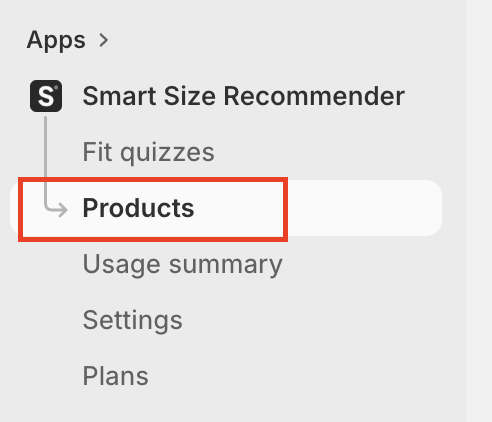
Navigate to Linked Products from the SmartSize sidebar.
What You'll See
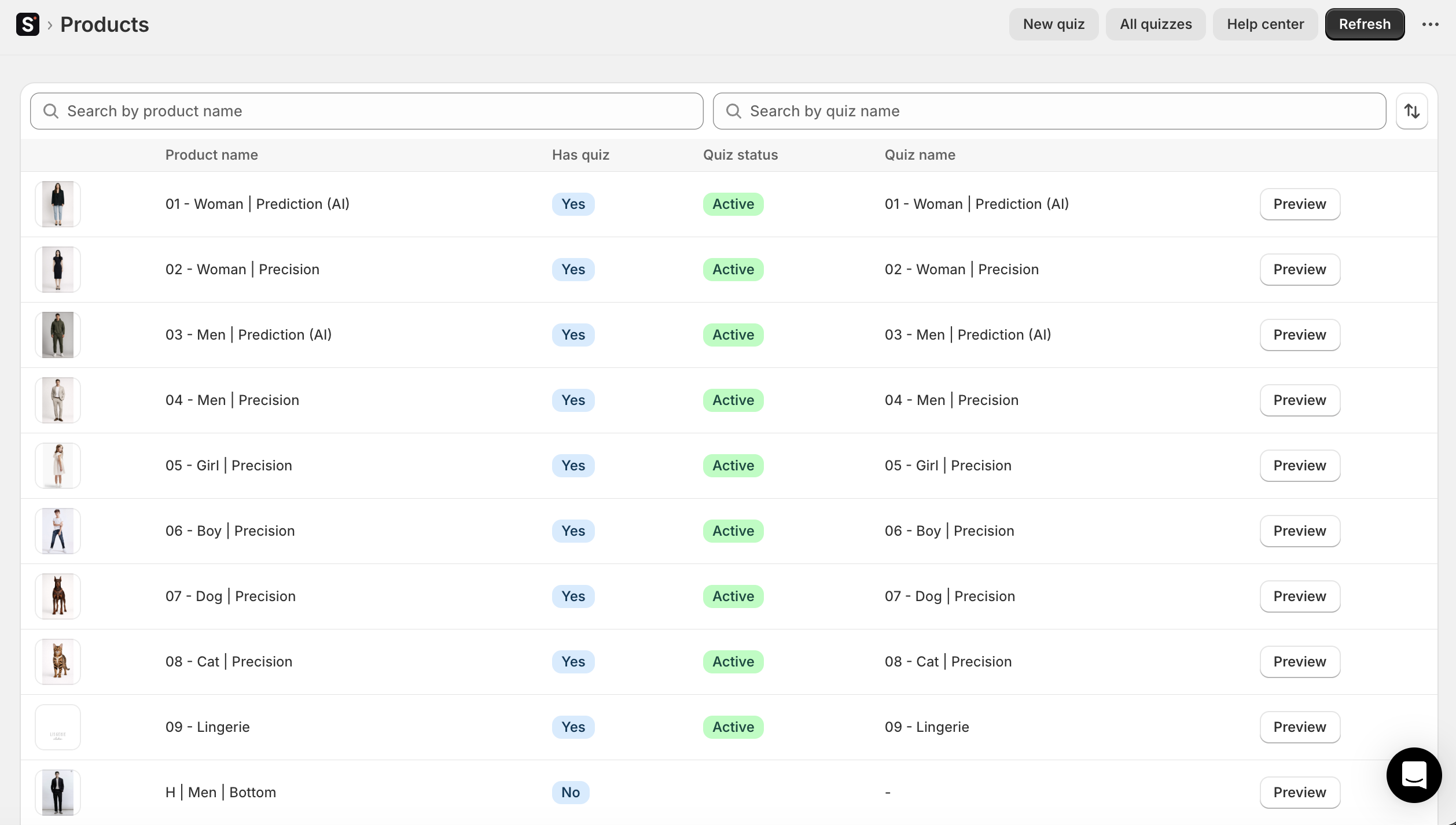
The table shows one row per product with:
- Thumbnail — The product image
- Product Name — Links to the product in Shopify Admin
- Has Quiz — Yes or No badge
- Quiz Status — Active or Draft (if a quiz is linked)
- Quiz Name — Links to the quiz editor (if a quiz is linked)
- Preview — Opens the product on your online store
Searching
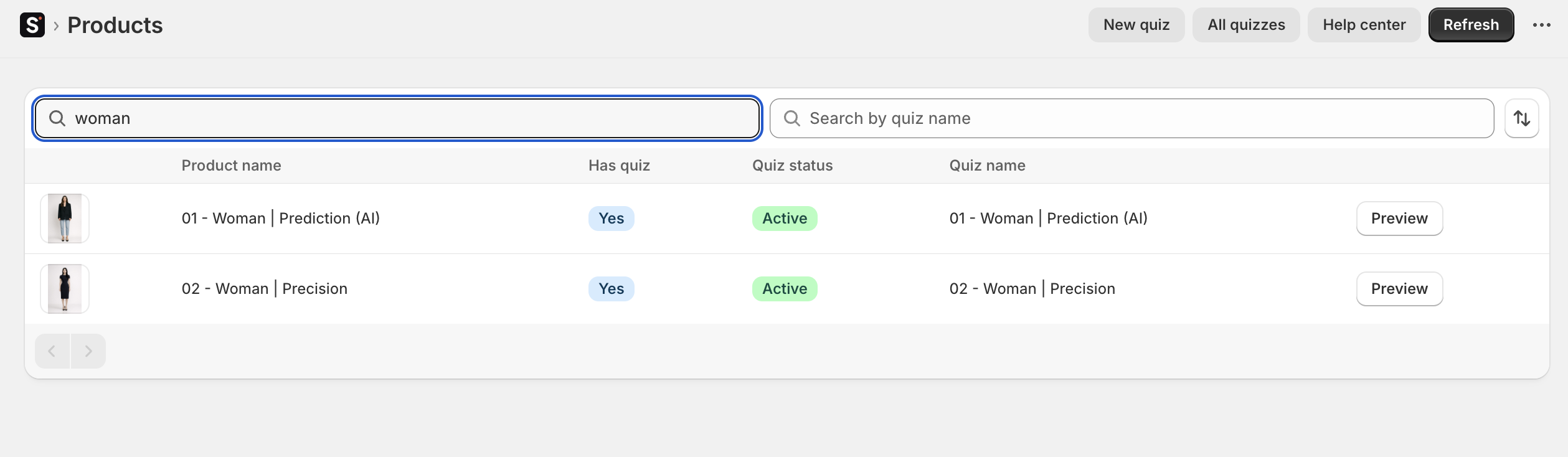
Use the two search fields above the table:
- Search by product name — Filter products by their Shopify title
- Search by quiz name — Filter to show only products linked to a quiz whose name matches your search
Sorting
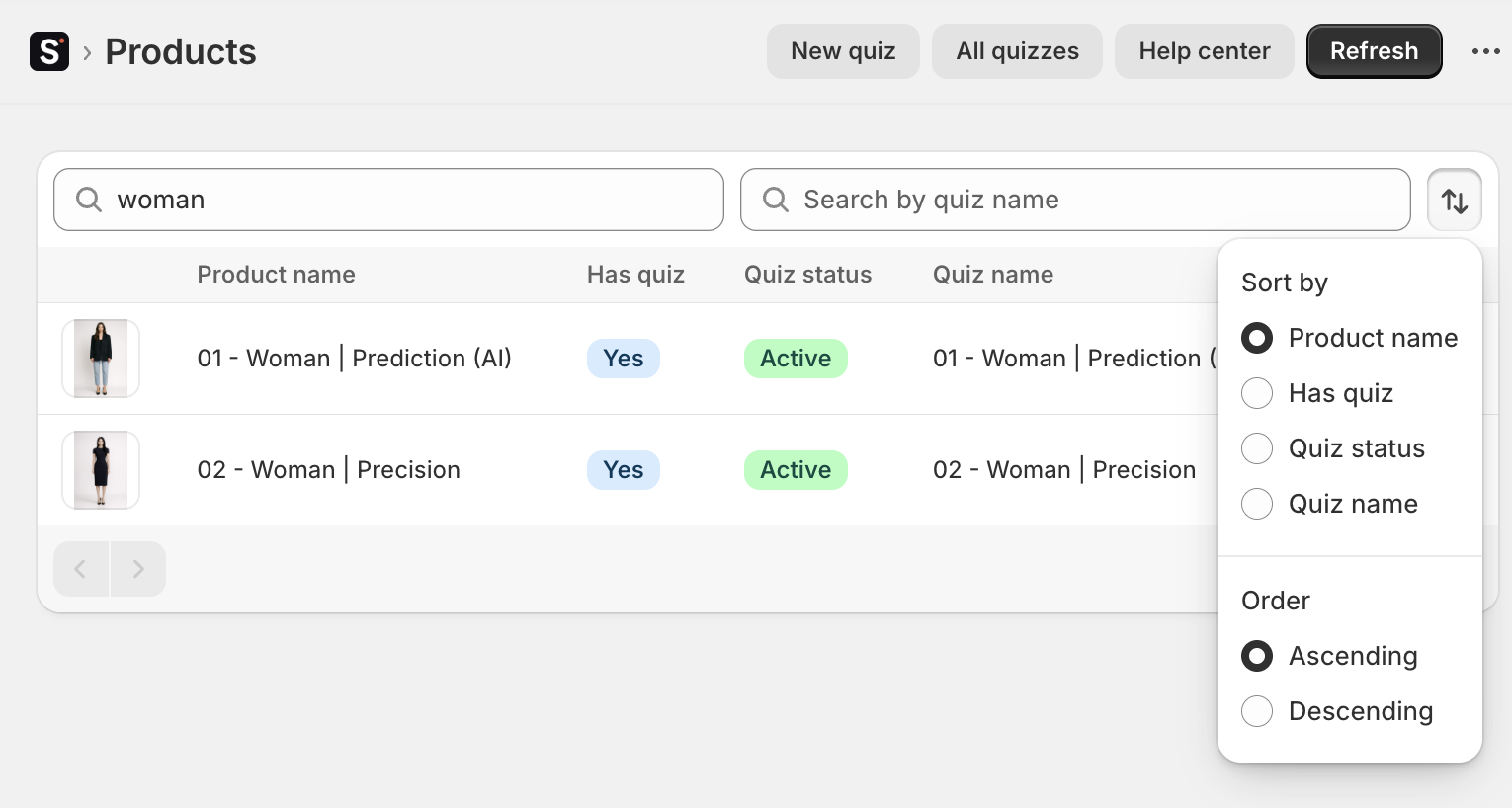
Click the sort button to order products by:
- Product name
- Has quiz (Yes/No)
- Quiz status
- Quiz name
Refreshing Data

The linked products data is cached for performance. Click Refresh in the page header to pull fresh data from Shopify.
Use this after you:
- Add or remove products in Shopify
- Change quiz-to-product linking rules
- Add or remove quizzes
Common Uses
- Spot unlinked products — Search for products without a quiz to identify gaps in coverage
- Verify linking rules — After changing a quiz's product linking, check that the right products show up
- Quick navigation — Click a quiz name to jump directly to its editor, or click a product name to view it in Shopify Admin